

- GA4's "matches regex" has to match the whole value and is case-sensitive. Search Console matches anywhere in the text and ignores case.
- Both use Google's RE2 syntax, which has no lookaheads, lookbehinds or backreferences.
- Escape dots in domains and file types: write \. when you mean a real dot.
- Test against real values first. A pattern that silently matches nothing looks exactly like a pattern with no data.
How to use this regex tester
- Choose where you'll use the pattern: Search Console, GA4 "matches regex" or GA4 "partially matches regex". Each matches differently, and the tester follows the one you pick.
- Build your pattern. Type words people search for, your brand names, the pages you want or a section like /blog/, and click "Test this pattern". Or start from one of the examples.
- Paste real values to test against, one per line. Copy them from a Search Console or GA4 report so you test what's actually in your data.
- Check the results and the checks. Matched values turn green with the matching part highlighted. The checks flag anything Google won't accept and the usual mistakes.
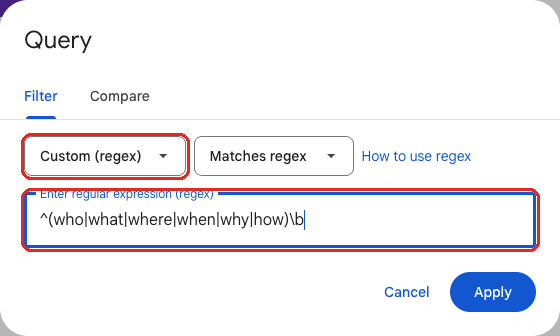
- Copy the pattern and paste it into your filter: "Custom (regex)" in Search Console, or "matches regex" in a GA4 report, exploration or audience.
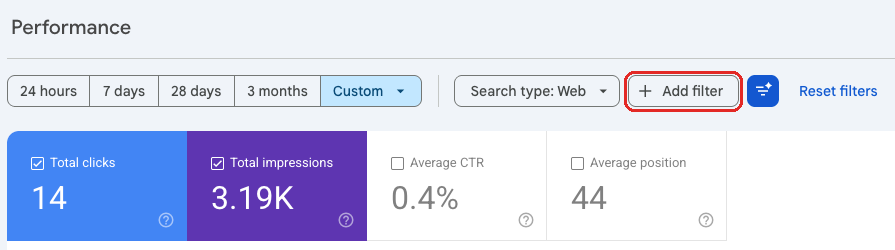
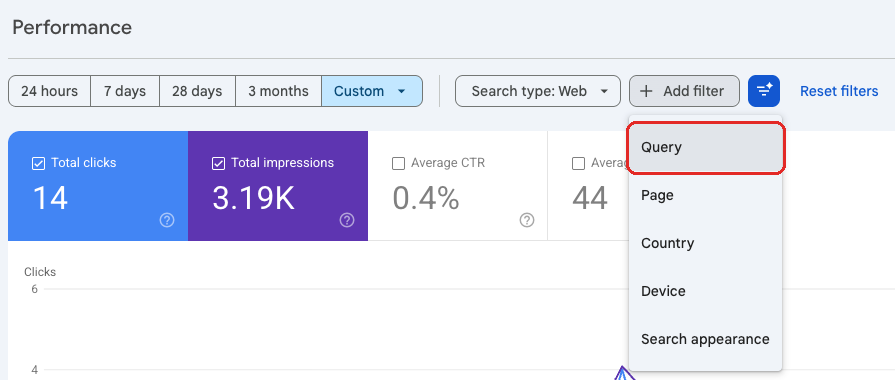
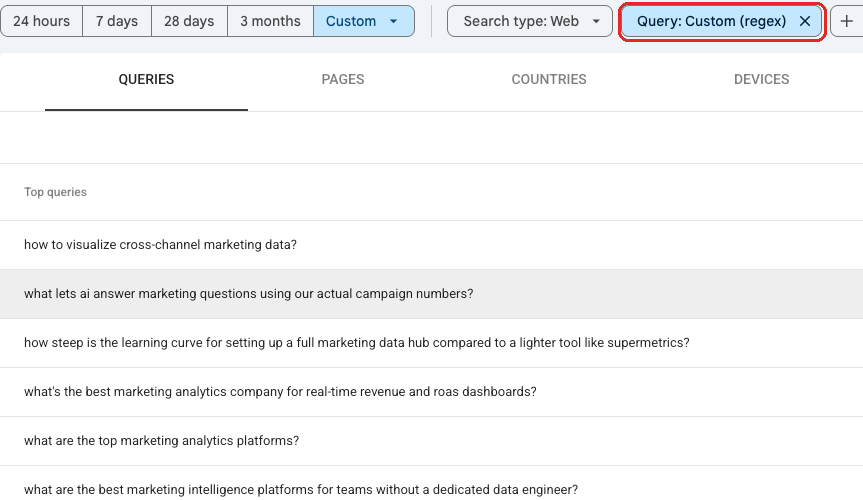
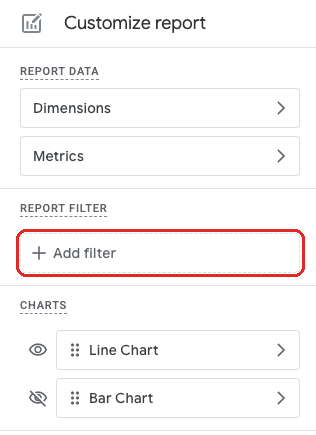
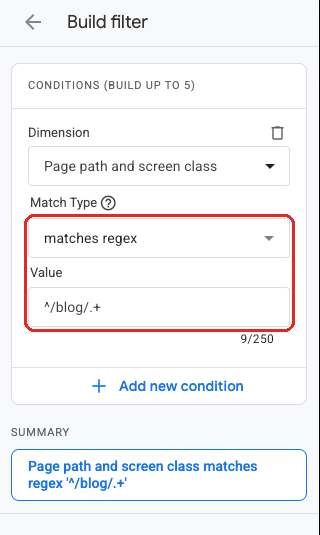
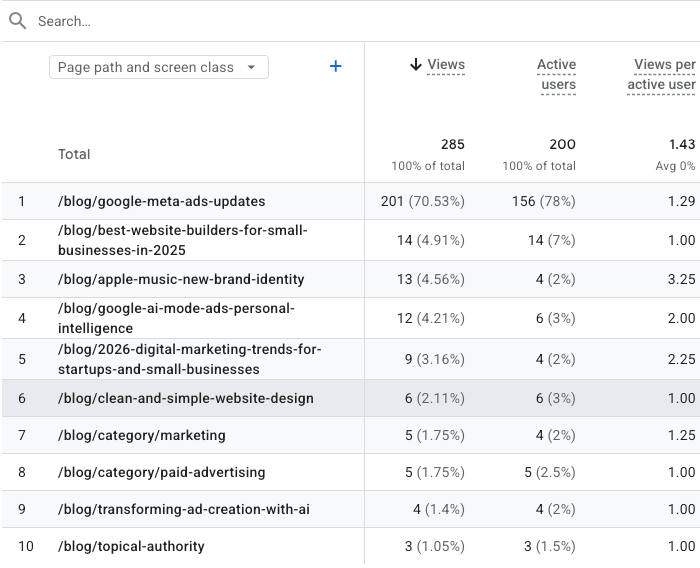
Here is step 5 in each tool, with two of the example patterns above.
In Search Console
In GA4

Why marketers use regex in GA4 and Search Console
Regular expressions let one filter do the work of many. Instead of adding ten page filters, one pattern can match every blog post, every product page or every question people search for. In Search Console they're the quickest way to split branded and non-branded searches. In GA4 they power report filters, explorations, audiences and custom channel groups.
How GA4 and Search Console read regex differently
| GA4 "matches regex" | GA4 "partially matches regex" | Search Console | |
|---|---|---|---|
| Has to match | The whole value | Any part of the value | Any part of the value |
| Capital letters | Count (case-sensitive) | Count (case-sensitive) | Ignored (add (?-i) to count them) |
| Syntax | RE2 | RE2 | RE2 |
So blog in GA4's "matches regex" only matches a value that is exactly "blog". In Search Console the same pattern matches any URL or query that contains it. Pick the mode above that matches where you'll paste the pattern.
What RE2 doesn't support
Google uses RE2 because it's fast and safe on huge data sets. That means a few features from other regex tools won't work:
- Lookaheads and lookbehinds, such as (?=...), (?!...), (?<=...) and (?<!...). Use the "doesn't match regex" filter option instead.
- Backreferences, such as \1.
- Possessive and atomic groups, such as a++ and (?>...).
This tester flags all of them, so you find out here rather than from an empty report.
Regex cheat sheet for marketers
| Write | Means | Example |
|---|---|---|
^ | Starts with | ^/blog/ |
$ | Ends with | \.pdf$ |
| | Or | pricing|contact |
.* | Anything, or nothing | ^/blog/.* |
\. | A real dot | analyse8\.com |
( ) | A group | ^/(blog|news)/ |
[ ] | Any one of these characters | colou?r, [0-9] |
? | The thing before is optional | https?:// |
+ | One or more of the thing before | \d+ |
(?i) | Ignore capital letters | (?i)analyse8 |
Ready-made regex patterns
| Use | Pattern | Where |
|---|---|---|
| Question searches | ^(who|what|where|when|why|how)\b | Search Console queries |
| Branded searches (build yours with the tool above) | acme[ -]?plumbing|acme | Search Console queries |
| Long searches (4+ words) | ^(\S+\s){3,}\S+$ | Search Console queries |
| All blog posts | ^/blog/.+ | GA4 page path |
| A few key pages | ^/(pricing|contact|demo)/$ | GA4 page path |
| File downloads | .*\.(pdf|docx?|xlsx?|zip)$ | GA4 file name or link URL |
| Paid mediums | ^(cpc|ppc|paid.*|retargeting)$ | GA4 session medium |
| Pages with URL parameters | \? | Search Console pages |
Common regex mistakes
- Forgetting GA4 needs a full match.
blogmatches nothing in GA4's "matches regex". Use.*blog.*, or choose "partially matches regex". - A stray | at the start or end. An empty option matches everything, so the filter quietly does nothing.
- Spaces around |.
pricing | contactlooks for "pricing " with a space. - Unescaped dots.
analyse8.comalso matches "analyse8xcom". Writeanalyse8\.com. - Copying patterns from other tools. Lookaheads work in many testers but not in Google's products.
Ask Analyse8 which blog posts brought in signups or how non-branded searches changed this month, and get the answer with a chart. Built for agencies, freelancers and founders.
